

Forum / NoMachine for Linux / Multiple client monitors with PopOS!
- This topic has 16 replies, 3 voices, and was last updated 6 months, 1 week ago by
 fisherman.
-
AuthorPosts
-
December 13, 2025 at 11:48 #55066deadrabbitParticipant
Hi,
could not clarify if it is possible to use multiple monitors with a Windows client and a NoMachine headless PopOS! Server.
I’m already digging trough several FAQs and tutorials, but I’m not able to get it working.
Current state:
- Pop!_OS 22.04 LTS
- Product: NoMachine Workstation Evaluation
What looks promising to me is this guide here:
https://github.com/fabienonwork/virtual_screen_with_nomachine
But also with this i’m not able to connect with the windows client to my headless Pop!OS.
Is what I want even possible in general, and does anyone have such a setup in operation?
Thanks in advance!
Maximilian
December 15, 2025 at 15:57 #55080BritgirlKeymasterHi, if you are unable to connect, can you show the error message you see? A screenshot will suffice. Can you describe the problem with multi-monitors, what is not working exactly?
Logs from both client and server machines would also be useful. You can extract them using the instructions here: https://kb.nomachine.com/DT08U00298#1.1.
Send them to forum[at]nomachine[dot]com. Please use the title of this topic as the subject of your email. Thanks!
December 16, 2025 at 08:34 #55081deadrabbitParticipantHi,
I’m able to connect. That’s not the problem.
I have two monitors connected to the client. I want to use both of them with the headless Pop! OS as two separate displays, not spanned.
Or in other words: I want Pop! OS to behave as if two physical monitors are connected.
Of course, I can provide a log file, but from my perspective, I’m at an earlier step: How do I need to configure NoMachine to get this behavior working?
December 16, 2025 at 18:36 #55086BritgirlKeymasterNow it’s clearer, we previously understood that a connection from your Windows client failed to connect as well. Take a look at the following https://kb.nomachine.com/AR06U01201 which explains how multi-monitors currently works in NoMachine.
Did you already try the following (they are the same steps as the other article you linked)?
– Open the NoMachine menu panel inside the session (ctrl+alt+0 or click on the page peel in the upper right corner of the window)
– Click on ‘Display’
– Click on ‘Resize remote display’ then on ‘Fullscreen on all monitors’It’s important that Resize is enabled, then on Fullscreen on all monitors. Can you show us a screenshot of the Display settings maybe?
There is also a Trouble Report open https://kb.nomachine.com/TR03U10791. When the X11 vector graphics mode is disabled, multiple monitors of the client are not treated as separate monitors. We are not sure if this is your case, but please check this setting in the ‘Server settings’ -> ‘Performance’ on the Linux host.
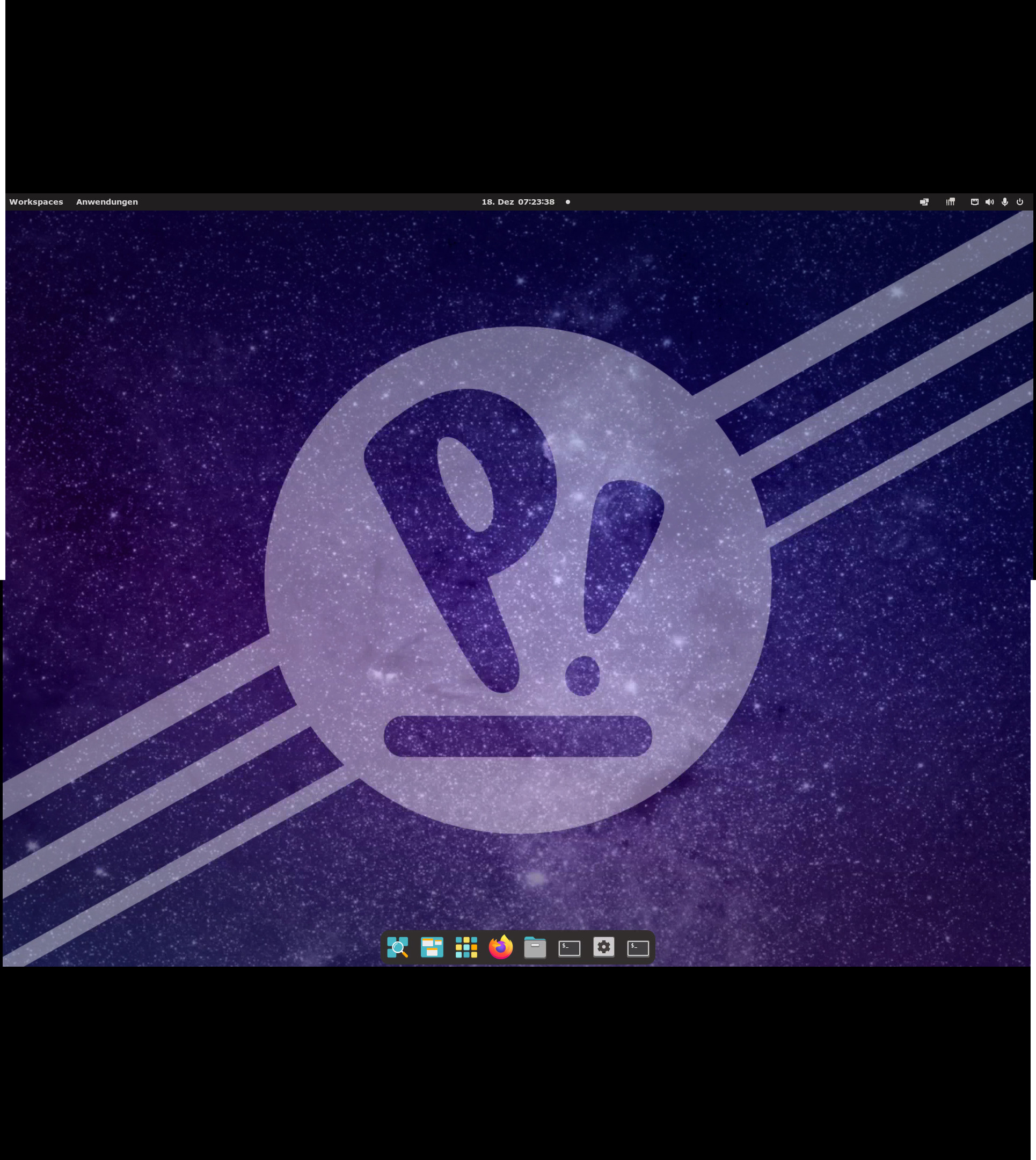
December 18, 2025 at 07:33 #55094deadrabbitParticipantDecember 18, 2025 at 09:07 #55093deadrabbitParticipantHi,
These are my settings on the client side:
And this is what i get:
(see the second post, maximum file size…)The second screen starts in the in the middle of the height of the screenshot.
The pyhsically second display is located above the primary display.
December 18, 2025 at 09:08 #55098BritgirlKeymasterHi, there was no attachment showing the settings.
December 18, 2025 at 09:48 #55101deadrabbitParticipantSorry, here are the settings.
Attachments:
December 18, 2025 at 12:10 #55104BritgirlKeymasterCan you also send us the client side logs whilst your connected to the remote desktop? Start the session, open the session menu (Ctrl-Alt-0) > Connection info. Save the file. You can submit it here or send to forum[at]nomachine[dot]com. Please use the title of this topic if you choose the latter option. Thanks!
December 18, 2025 at 12:18 #55105deadrabbitParticipantHi,
i’ve wrote you a e-mail with the log files.
December 23, 2025 at 18:38 #55133fishermanModeratorHi,
Based on the screenshot you shared from the NoMachine settings, it appears that the NoMachine server is not detecting the second display.
To investigate further, please run the following command on the server and share the output:
xrandr --query | grep " connected\| disconnected"- If two screens are listed as connected, please collect the NoMachine server-side logs and share them with us, following the instructions in this article:
https://kb.nomachine.com/DT07S00243- If only one screen is shown, there is likely an issue with the Xorg configuration. Since you mentioned that you are using a NoMachine workstation, one possible workaround is to log out from the physical desktop session and create a Virtual Desktop instead.
After creating the virtual desktop, please follow the steps in the article below—especially the section “Click on ‘Resize remote display’ then on ‘Fullscreen on all monitors’”:
https://knowledgebase.nomachine.com/AR06S01131Please let us know the results or if you need further assistance.
December 29, 2025 at 10:21 #55134deadrabbitParticipantHi,
i have checked the output of
xrand:`
❯ xrandr –query | grep ” connected\| disconnected”
Virtual-1 connected primary 1920×1080+0+0 0mm x 0mm
Virtual-2 disconnected
Virtual-3 disconnected
Virtual-4 disconnected
`If only one screen is shown, there is likely an issue with the Xorg configuration. Since you mentioned that you are using a NoMachine Workstation, one possible workaround is to log out from the physical desktop session and create a Virtual Desktop instead.
However, I do not want a second desktop session, as this behavior does not meet my requirements.
Therefore, I would like to reiterate my original question:
Is what I want even possible in general, and does anyone have such a setup in operation?
December 29, 2025 at 11:40 #55160fishermanModeratorPlease reformulate your question and clearly state what you are trying to achieve. Based on your description, what I proposed reflects my understanding of your goal.
As mentioned, you can connect to the physical desktop of the remote system. In your case, the remote system (PopOS) is configured with a single display, as confirmed by xrandr. When you connect, you will see only what is available in that session.
I outlined two possible approaches:
1. Configure an additional virtual screen, as you mentioned in your initial post.
2. Use NoMachine virtual desktops along with the “Fullscreen on all monitors” feature.December 29, 2025 at 11:46 #55161deadrabbitParticipantHi fisherman,
Thank you for asking me to clarify. Let me try to describe my goal more precisely:
What I’m trying to achieve:
I want to connect from my Windows client (with 2 physical monitors) to my headless Pop!OS server. I want both client monitors to appear as separate, independent displays on the server – as if two physical monitors were connected to the server. Pop!OS should recognize them as two separate screens (e.g., in the display settings), not as one large spanned desktop.What does NOT work for me:
Option 2 (Virtual Desktop) does not meet my requirements because it creates a separate virtual desktop session. However, I want to use the physical desktop session – just with multiple virtual displays.My specific question:
Is it possible with NoMachine Workstation to configure multiple virtual displays within the existing physical desktop session that can then be used by my multi-monitor client?If yes: How would I need to configure this? The guide I mentioned initially (https://github.com/fabienonwork/virtual_screen_with_nomachine) seems to go in this direction, but I couldn’t get it to work.
If no: Is this functionality perhaps available in another NoMachine product or planned for the future?
Thank you for your help!
MaximilianDecember 30, 2025 at 16:12 #55176fishermanModeratorBased on your request and explanation, this does not appear to be a NoMachine issue but rather a configuration-related matter.
From the xrandr output, it appears that the system is likely running inside a virtual machine. In virtualized environments, display configuration—particularly virtual displays—is managed by the virtualization software itself. Because of this, the solution described in the referenced GitHub article would not apply in your case.
The GitHub article specifically targets systems running on a physical host with an Intel GPU, which differs from a virtual machine setup.
-
AuthorPosts

This topic was marked as solved, you can't post.